
How to Automate Invoice Data Entry With an LLM (and Human Review)
Turn invoice and receipt scans into clean CSV rows with an LLM, code checks for totals and TINs, and a human review queue. Tested Python inside.
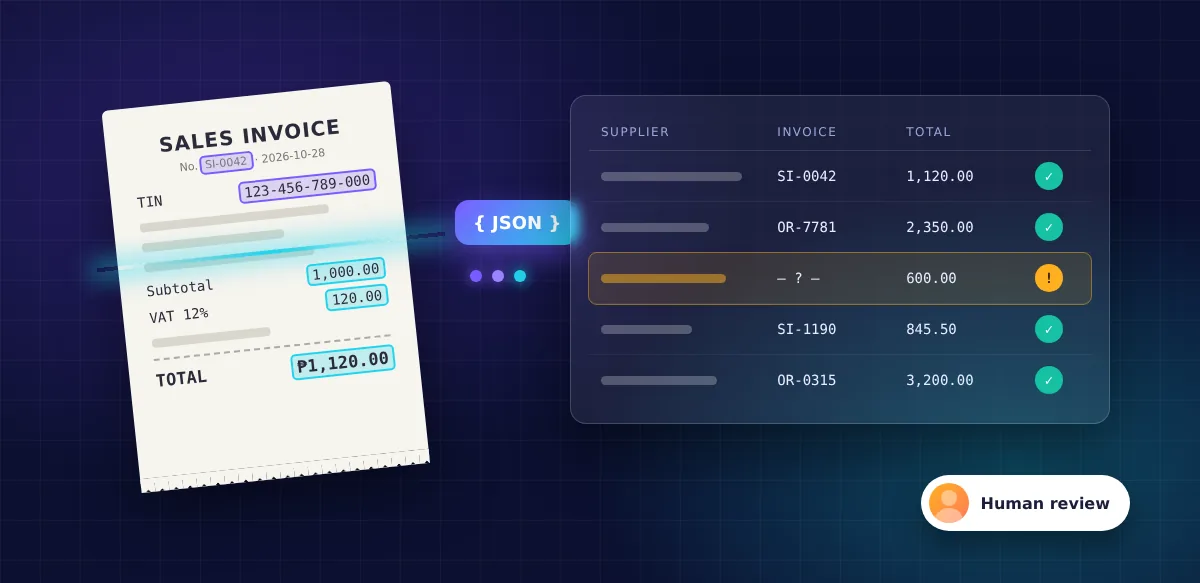
Short answer: send each invoice or receipt image (or PDF) to a vision-capable language model, force it to answer in a fixed schema, then check every result with plain code: required fields present, dates valid, TIN in the right format, and subtotal plus VAT equal to the total. Records that pass go straight into a “ready” file for your bookkeeper. Anything that fails, or that the model marked as unreadable, goes to a “needs review” queue that a person checks against the original. The model reads, your code checks, and a human decides on anything uncertain.
Manually encoding supplier invoices and expense receipts is one of the best first jobs for AI in a small business. There’s plenty of volume, the fields hardly change, and every answer can be checked against the paper. It is also a job where a confident wrong number costs real money, so this tutorial builds the review step in from the start rather than bolting it on later. By the end you will have a short Python script that turns a folder of scans into two CSV files.
What you need
- Python 3.10 or newer and the official SDK:
pip install anthropic. - An API key in the
ANTHROPIC_API_KEYenvironment variable. - A folder of sample invoices and receipts: phone photos, scans or PDFs. Start with 20 to 30 real ones, including a few bad photos.
- The person who encodes these today. They define what “correct” means, and they will run the review queue.
Step 1: Decide the fields before you write any prompt
Sit with your bookkeeper and write down exactly which columns end up in the books. For most Philippine SMEs the starting list is short: supplier name, supplier TIN, invoice or OR number, date, currency, subtotal (VATable sales), VAT and total. Resist adding fifteen “nice to have” fields. Every extra field is another thing to verify, and line items in particular are where extraction gets messy. Get headers right first, then add line items if you still need them.
Also agree what happens when a field is missing. A receipt with no TIN is a business question (“can we claim this?”), not a technical one, and the answer belongs in your review rules.
Step 2: Force a fixed output shape
Free-text answers are hard to check. Instead, give the model a single tool called record_invoice with a JSON schema and require it to call that tool. The SDK then returns a Python dictionary with exactly the keys you defined. Two details matter more than the schema itself:
- Amounts as text, not numbers. You will convert them with
Decimal, which avoids floating-point rounding surprises in accounting. - An
unreadable_fieldslist. This gives the model an honest way to say “I can’t read this”, which is far better than a plausible guess. The prompt tells it to use null plus this list instead of guessing.
Step 3: The full script
Save this as extract.py. It reads every image or PDF in a folder, extracts the fields, runs the checks, and writes ready.csv and needs_review.csv.
import base64, csv, re, sys
from datetime import date
from decimal import Decimal, InvalidOperation
from pathlib import Path

import anthropic

MODEL = "claude-sonnet-5-5"
client = anthropic.Anthropic()  # reads ANTHROPIC_API_KEY

RECORD_TOOL = {
    "name": "record_invoice",
    "description": "Record the fields read from one invoice or receipt.",
    "input_schema": {
        "type": "object",
        "properties": {
            "supplier_name": {"type": "string"},
            "supplier_tin": {"type": ["string", "null"], "description": "As printed, or null if absent"},
            "invoice_number": {"type": ["string", "null"]},
            "invoice_date": {"type": ["string", "null"], "description": "YYYY-MM-DD"},
            "currency": {"type": "string", "description": "ISO code, e.g. PHP"},
            "subtotal": {"type": ["string", "null"], "description": "Number as text, no commas"},
            "vat": {"type": ["string", "null"]},
            "total": {"type": ["string", "null"]},
            "unreadable_fields": {"type": "array", "items": {"type": "string"},
                                  "description": "Fields you could not read with certainty"},
        },
        "required": ["supplier_name", "supplier_tin", "invoice_number", "invoice_date",
                     "currency", "subtotal", "vat", "total", "unreadable_fields"],
    },
}

PROMPT = """Read this invoice or receipt and call record_invoice once.
Copy values exactly as printed. Never guess: if a field is missing, blurred
or ambiguous, set it to null and list it in unreadable_fields.
Dates must be YYYY-MM-DD. Amounts: digits and a decimal point only."""

MEDIA = {".jpg": "image/jpeg", ".jpeg": "image/jpeg", ".png": "image/png",
         ".webp": "image/webp", ".pdf": "application/pdf"}


def file_block(path: Path) -> dict:
    media_type = MEDIA[path.suffix.lower()]
    data = base64.standard_b64encode(path.read_bytes()).decode()
    kind = "document" if media_type == "application/pdf" else "image"
    return {"type": kind, "source": {"type": "base64", "media_type": media_type, "data": data}}


def extract(path: Path) -> dict:
    msg = client.messages.create(
        model=MODEL,
        max_tokens=1024,
        tools=[RECORD_TOOL],
        tool_choice={"type": "tool", "name": "record_invoice"},
        messages=[{"role": "user", "content": [file_block(path), {"type": "text", "text": PROMPT}]}],
    )
    return next(b.input for b in msg.content if b.type == "tool_use")


def money(value):
    try:
        return Decimal(value) if value not in (None, "") else None
    except InvalidOperation:
        return None


def check(rec: dict) -> list[str]:
    """Plain-code checks. Every problem sends the record to a human."""
    problems = [f"unreadable: {f}" for f in rec.get("unreadable_fields", [])]
    for field in ("invoice_number", "invoice_date", "total"):
        if not rec.get(field):
            problems.append(f"missing {field}")
    tin = rec.get("supplier_tin")
    if tin and not re.fullmatch(r"\d{3}-\d{3}-\d{3}(-\d{3,5})?", tin):
        problems.append(f"TIN format looks wrong: {tin}")
    if rec.get("invoice_date"):
        try:
            d = date.fromisoformat(rec["invoice_date"])
            if d > date.today():
                problems.append("date is in the future")
        except ValueError:
            problems.append(f"bad date: {rec['invoice_date']}")
    sub, vat, total = money(rec.get("subtotal")), money(rec.get("vat")), money(rec.get("total"))
    if rec.get("total") and total is None:
        problems.append(f"total is not a number: {rec['total']}")
    if None not in (sub, vat, total) and abs(sub + vat - total) > Decimal("0.05"):
        problems.append(f"subtotal + VAT = {sub + vat}, but total says {total}")
    return problems


FIELDS = ["file", "supplier_name", "supplier_tin", "invoice_number", "invoice_date",
          "currency", "subtotal", "vat", "total", "problems"]


def main(folder: str):
    rows_ok, rows_review = [], []
    for path in sorted(Path(folder).iterdir()):
        if path.suffix.lower() not in MEDIA:
            continue
        rec = extract(path)
        problems = check(rec)
        row = {k: rec.get(k) for k in FIELDS} | {"file": path.name, "problems": "; ".join(problems)}
        (rows_review if problems else rows_ok).append(row)
        print(f"{'REVIEW' if problems else 'ok    '} {path.name} {row['problems']}")
    for name, rows in (("ready.csv", rows_ok), ("needs_review.csv", rows_review)):
        with open(name, "w", newline="") as f:
            w = csv.DictWriter(f, fieldnames=FIELDS)
            w.writeheader()
            w.writerows(rows)
    print(f"{len(rows_ok)} ready, {len(rows_review)} need review")


if __name__ == "__main__":
    main(sys.argv[1] if len(sys.argv) > 1 else "inbox")
Run it with python extract.py inbox. Each file prints as ok or REVIEW with the reasons, for example: REVIEW b.jpg missing invoice_number; subtotal + VAT = 560.00, but total says 600.00.
We tested this script with the API call stubbed out, using one clean record and one with a missing invoice number, a malformed TIN and totals that don’t add up. The clean one landed in ready.csv; the other went to review with all three problems listed. Run the same kind of test on your own samples before trusting it with a month of receipts.
Step 4: Why the checks live in code, not in the prompt
You could ask the model to “double-check that the totals add up”. It will often say it did. Code actually does it. The check() function is deliberately boring:
- Arithmetic: subtotal plus VAT must equal the total within five centavos. This one check catches most single misread digits, because one wrong digit in one field breaks the sum.
- Format: a Philippine TIN is nine digits plus a branch code, usually printed like
123-456-789-000. Anything else is flagged, not “fixed”. - Sanity: dates must parse and can’t be in the future; invoice number, date and total must exist.
- Honesty: any field the model listed as unreadable sends the record to review, even if every other check passes.
Add the rules your business already uses. Common ones are: flag any total above a set amount, flag suppliers not in your supplier list, and flag a supplier name plus invoice number you have already recorded (duplicate submissions are a classic receipt problem).
Step 5: Design the human review step
The review queue is the product, not an afterthought. Keep it simple enough that the person doing it today will actually use it:
- Open
needs_review.csvin a spreadsheet, next to the folder of originals. Thefilecolumn tells the reviewer which image to open. - The
problemscolumn says what to look at, so the reviewer checks one or two fields instead of re-encoding the whole invoice. - The reviewer corrects the row and moves it to the ready sheet. Nothing reaches the books without either passing every check or being touched by a person.
- Once a week, also spot-check five random rows from
ready.csv. Passing the checks doesn’t make a record right; spot checks are how you find the errors your rules don’t catch yet.
We cover the general pattern of where to put the human, and how to stop the review step becoming a rubber stamp, in Approval gates: designing the human step in an autonomous workflow.
Step 6: Measure before you trust it
Before switching off manual encoding, build a small answer key: 30 to 50 invoices with the correct values typed in by your bookkeeper. Run the script on them and count, field by field, how many it got right, how many it wrongly sent to review, and, most importantly, how many wrong values slipped into ready.csv. That last number is the one that decides whether you go live. Our guide on how to write an evaluation set for an AI feature in one afternoon shows how to build that answer key quickly.
Keep the answer key. Whenever you change the prompt, the model or the checks, run it again. Ten minutes of re-testing is cheaper than a quarter’s worth of wrong VAT figures.
Practical tips from real scans
- Photo quality matters more than the prompt. Ask staff to shoot receipts flat, in good light and filling the frame. Thermal-paper receipts fade, so capture them on the day.
- One document per file. Three receipts in one photo will confuse the extraction and your file-to-row mapping.
- Keep the originals. The CSV is a convenience. The image is the record your accountant and auditors care about.
- Mind personal data. Receipts can carry names, addresses and card details. Store scans with limited access, delete what you don’t need, and check your obligations under the Data Privacy Act before sending documents to any outside service. Our guide to starting with AI as a Philippine SME covers the low-risk way to begin.
- Start with headers, then decide on line items. If you only need totals for bookkeeping, skip line items entirely.
Where to go from here
The script above is a working first version. In a real deployment the next steps are usually: pulling attachments straight from an email inbox, pushing approved rows into your accounting system instead of a CSV, and a small review screen so the reviewer sees the image and the fields side by side. None of those change the core idea: the model reads, code checks, and a person decides anything uncertain.
Want this running on your own invoices?
Jumpstart Creatives builds this kind of document workflow for businesses: extraction tuned to your documents, checks that match your accounting rules, a review screen your team will actually use, and an answer key so you know how accurate it is before you rely on it. See what we offer on our services page, or get in touch with a few sample invoices and we’ll tell you honestly whether it’s a good fit.